
Depot Repair Guide
- Free 90-Day Warranty
- 5 In-House Technicians
- 20+ Brands, 100s of Models
- Phoenix, AZ Repair Depot
- Updated October 7, 2026
Most Zebra printer problems trace back to four things: media, ribbon, calibration, or the printhead. Work them in that order and you will resolve the majority of failures at your own bench without shipping anything. This guide covers the nine problems our technicians see most on Zebra thermal printers — what the error states actually mean, the exact button sequences for calibration and factory reset, and the point at which a printer stops being worth fixing.
Sterling Mobile Services has repaired Zebra printers at our Phoenix depot for more than a decade, across the ZD, GK, ZM, 105SL, Xi, ZT, and QLn families. Everything below is written for the person standing in front of the machine at 6 a.m. with a shift waiting on labels.
Why Is My Zebra Printer Not Printing?
A Zebra printer that powers on but produces nothing is almost always failing on media detection, ribbon presence, or a stalled print queue — not a dead printhead. Run a self-test first: hold the FEED button while powering the printer on, then release. If a configuration label prints, the printer and printhead are healthy and the fault is upstream in the driver, cable, or network.
If the self-test prints but your labels do not, work through these four checks in order:
- Print mode mismatch. A printer set to thermal transfer with no ribbon loaded will feed blank labels indefinitely. Direct thermal media needs the printer set to direct thermal.
- Wrong default printer. Jobs routed to a different device are the single most common false alarm we field on our support line.
- Stalled spooler. Clear the queue and restart the Windows Print Spooler service before touching the hardware.
- Media loaded past the sensor. Labels threaded outside the media guides will not trigger the gap or black-mark sensor.
A blank label that feeds correctly means the printhead is receiving no heat instruction. A label that will not feed at all means the printer never detected media. Those are two different repairs, and telling them apart before you call saves a diagnostic cycle.
Zebra Printer Error Messages and Indicator Lights, Decoded
Zebra spreads its error definitions across dozens of model-specific manuals, which is why most people never find the one they need. The table below consolidates the states you will actually encounter on the shop floor and the first fix for each. Desktop models such as the ZD421 and GK420d signal through indicator light colors; industrial models such as the ZT411, ZM400, and 105SL print the message on the display.
| Error state | What it means | First fix |
|---|---|---|
| MEDIA OUT | The media sensor sees no label — empty roll, mis-threaded stock, or a dirty sensor. | Reload media inside the guides, blow out the sensor, then recalibrate. |
| RIBBON OUT | Thermal transfer mode is active with no ribbon detected, or the ribbon has snapped. | Re-thread the ribbon, or switch the printer to direct thermal if your labels do not need one. |
| HEAD OPEN | The printhead latch is not fully seated, or the latch sensor has failed. | Reseat both sides of the latch until they click. Repeating alerts on a closed head mean a failed sensor. |
| PRINTHEAD OVER TEMP | The printhead exceeded safe operating temperature and paused to protect itself. | Let it cool, lower the darkness setting, and reduce print speed on long batch runs. |
| PRINTHEAD UNDER TEMP | Ambient temperature is too low, or the thermistor is reporting a false reading. | Warm the printer to room temperature. A persistent alert in a warm room is a printhead fault. |
| OUT OF MEMORY | The label format, fonts, or graphics exceed the printer's available storage. | Delete unused stored formats and graphics, or simplify the ZPL label template. |
| Solid red light | Desktop models: the printer has stopped on an unrecoverable error. | Power cycle, then run a self-test. If red returns immediately, it is a hardware fault. |
| Flashing amber | The printer needs attention — usually calibration or a media type change. | Run a media calibration before assuming a hardware problem. |
| Flashing green | Data is transferring, or the printer is paused mid-job. | Press PAUSE once to resume. This is normal operation, not an error. |
Zebra publishes model-level detail for these states in its alerts and error messages documentation and a colour-by-colour breakdown in its indicator light reference.
How to Calibrate a Zebra Printer
Calibration teaches the printer where one label ends and the next begins, and it fixes skipping, blank labels between prints, and text drifting off the edge. On most Zebra models, press and hold PAUSE + CANCEL together for roughly two seconds. The printer feeds and measures several labels, then returns to READY.
If auto-calibration fails, the media sensor is either in the wrong position or looking for the wrong marker. Run a manual calibration:
- Identify your media type — gap, notch, or black mark. This determines whether the printer uses transmissive or reflective sensing.
- Move the media sensor so it sits directly over the gap or black mark, not over printed artwork.
- Peel three inches of labels off the liner and position the bare liner over the platen roller.
- Start manual media calibration from the printer menu or button sequence, then let it feed and measure.
How to Reset a Zebra Printer to Factory Settings
A factory reset clears corrupted configuration — wrong darkness, bad label length, broken network settings — and is the correct next step when calibration alone does not fix erratic behaviour. Print a configuration label first so you have a record of your network and media settings before wiping them.
On most current Zebra desktop and industrial models, hold PAUSE + FEED together for several seconds until the status light cycles, then release. Menu-driven models offer a Restore Defaults option under Tools or Settings. Zebra Setup Utilities can also push a reset over USB from a connected PC, which is the reliable path on models with no display.
A printer that will not hold its settings through a power cycle after a factory reset has a failing logic board or battery-backed memory. That is a depot repair, not a configuration problem.
Fixing Faded, Streaked, and Half-Printed Labels
Print quality faults come from the printhead, the media, or the heat settings — in that order of likelihood. A clean vertical white line running down every label means dead printhead elements and requires replacement; no cleaning will bring those pixels back. Uniformly faded output usually means darkness is set too low, print speed is too high, or the ribbon does not match the label facestock.
Clean the printhead with an approved cleaning pen or 99% isopropyl alcohol on a lint-free swab, and clean the platen roller at the same time. Zebra's guidance is to clean at every media or ribbon change, which in a busy fulfilment operation means daily — not quarterly.
When Your Zebra Printer Won't Connect to Wi-Fi or a Computer
Connectivity failures are almost always network or driver problems rather than printer faults, and the configuration label tells you which. Hold FEED while powering on to print it, then read the IP address and wireless status directly off the label — if the printer shows a valid IP, the printer side is working and the problem is on the network or host.
For USB and Ethernet, swap the cable and the port before anything else; both fail far more often than the printer's interface. For wireless models, confirm the printer is on the same subnet as the host, and check that the network has not moved to a band or security mode the printer's radio does not support — older Zebra radios do not join 5 GHz-only networks. Reinstalling the driver from Zebra's current release resolves most post-Windows-update failures. Our tech support line can walk you through a network reconfiguration before you decide to ship anything.
What Our Technicians Check First
Every Zebra printer that arrives at our Phoenix depot runs the same diagnostic sequence before any part is ordered, which is how we avoid replacing a printhead that was only dirty. The order matters: each step rules out a cause that would otherwise mimic a hardware failure further down the list.
- Self-test and configuration label. Establishes whether the printhead, motor, and firmware are functional independent of any host.
- Printhead inspection under magnification. Separates burnt elements from adhesive contamination — the difference between a clean and a replacement.
- Platen roller and drive train. Flat spots, glazing, and belt wear cause registration faults that look like calibration problems.
- Sensor and latch verification. Confirms the media sensor and head-open switch report correctly under load, not just at rest.
Only after those four steps do we quote parts. Every repair is performed in-house by our five dedicated technicians — we do not outsource Zebra printer work — and every completed repair carries a free 90-day warranty.
Repair or Replace? A Zebra Printer Decision Guide
The break-even point on a Zebra printer is driven by parts availability, not age — a well-built industrial frame from 2012 is often worth repairing when a five-year-old desktop model is not. Use the table below as a starting position, then match it against how many identical units you run.
| Zebra series | Status | Common repair | Recommendation |
|---|---|---|---|
| ZD400 / ZD600 | Current desktop | Printhead, platen roller | Repair — parts are readily available. |
| ZT200 / ZT400 / ZT600 | Current industrial | Printhead, platen, belt, sensor | Repair — these frames justify multiple printhead cycles. |
| GK420 / GX430 | Discontinued desktop | Printhead, platen roller | Repair if your fleet is standardised on it; otherwise move to a refurbished ZD. |
| ZM400 / ZM600 | Discontinued, succeeded by ZT400 | Printhead, main logic board | Repair while parts hold. Ask us about refurbished units before buying new. |
| 105SL / 105SLPlus | Legacy industrial | Printhead, drive belt | Repair — the mechanics typically outlast the electronics by years. |
| Xi3 / Xi4 series | Legacy industrial | Printhead, gearbox | Repair for high-duty environments; evaluate replacement if downtime is critical. |
| QLn / QL / RW mobile | Mixed | Battery, printhead, latch assembly | Repair, or swap to a refurbished unit if the housing is cracked. |
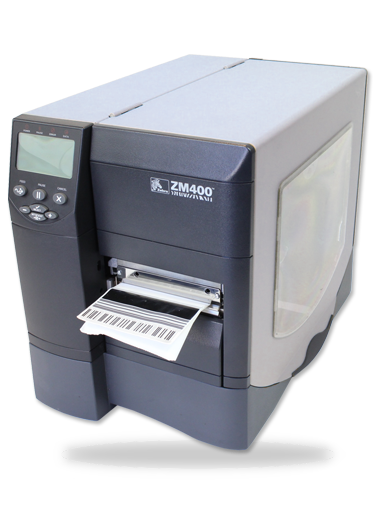
Refurbished Zebra hardware typically runs 25% to 50% below the cost of new, and every refurbished unit we sell is stripped, cleaned, re-parted, and tested to manufacturer specifications before it ships with the same free 90-day warranty. You can browse refurbished Zebra printers and legacy models including the Zebra ZM400 and Zebra 105SL, or read our breakdown of the ZT410 and ZT420 for logistics and manufacturing. If a printer is down during a peak week and you cannot wait on a repair, short-term equipment rentals cover the gap.
Frequently Asked Questions
How do I reset my Zebra printer to factory settings?
Hold PAUSE + FEED together for several seconds until the status light cycles, then release. Menu-driven models also offer Restore Defaults under Tools or Settings, and Zebra Setup Utilities can push a reset over USB. Print a configuration label first so you keep a record of your network and media settings before they are cleared.
Why is my Zebra printer printing blank labels?
Blank labels that feed normally almost always mean the printer is set to thermal transfer with no ribbon loaded, or you are using direct thermal media with the wrong mode selected. Check the print method setting first. If the mode is correct and labels are still blank, the printhead is receiving power but no heat instruction, which points to a printhead or logic board fault.
How often should a Zebra printhead be cleaned?
Zebra's guidance is to clean the printhead at every media or ribbon change. In a high-volume warehouse that means daily. Use an approved cleaning pen or 99% isopropyl alcohol on a lint-free swab, and clean the platen roller in the same pass. Adhesive residue combined with dust is the fastest way to destroy a printhead.
Can you repair a discontinued Zebra printer like a ZM400 or 105SL?
Yes. We service 20+ brands and hundreds of models, including discontinued Zebra industrial printers, at our Phoenix depot. Legacy industrial frames are frequently worth repairing because the mechanics outlast the electronics. If parts are no longer obtainable for your unit, we will tell you and quote a refurbished replacement instead.
Can I drop my Zebra printer off in Phoenix instead of shipping it?
Yes. Our depot at 5631 S 24th St sits in the South Phoenix industrial corridor near Sky Harbor, and local businesses across Phoenix, Tempe, Chandler, Mesa, Scottsdale, and Glendale drop off and pick up in person rather than shipping cross-country. If you are outside the metro, ship it in — follow our packing list so it arrives ready for the bench.
Still Down? Send It to Our Phoenix Depot
Five in-house technicians, 20+ brands serviced, and a free 90-day warranty on every repair. Ship it in from anywhere in the US, or drop it off in South Phoenix.
Call (480) 785-4711 → Request a Free Quote →
Shipping a unit in? Use the repair packing list and review our warranty and returns terms. Learn more about the Phoenix repair depot. Printer too heavy to move? Book on-site Zebra printer service anywhere in the Phoenix metro.
Sterling Mobile Services
5631 S 24th St, Phoenix, AZ 85040
Phone: (480) 785-4711 | Fax: (480) 785-4717
Email: info@sterlingmobile.com
Hours: Monday–Friday, 8:00 AM – 5:00 PM Arizona time (MST, no daylight saving). Closed Saturday and Sunday.
Still not printing after troubleshooting?
If calibration, a reset and a printhead cleaning haven't fixed it, the fault is usually a worn printhead, a glazed platen roller or a failed sensor. Our Phoenix bench handles Zebra printer service with a free 90-day warranty — drop off in South Phoenix, book on-site service anywhere in the Phoenix metro, or ship in from the Southwest.
ZM400 printhead worn or platen glazed?
A ZM400 with faded or streaked labels is almost always a wear-part job, not a replacement job. Sterling Mobile repairs the ZM400, 105SL and ZT-series at our Phoenix depot or on-site across the metro — see Zebra printer repair in Phoenix for what we fix and how to get a unit to the bench.
ZT410 or ZT420 down on the line?
Industrial ZT printers rarely need to leave the floor. Sterling Mobile provides on-site and depot Zebra printer repair throughout the Phoenix metro — printhead, platen, sensor and cutter work with a free 90-day warranty — and ship-in service for the rest of Arizona and the Southwest.
105SL still in service? We still repair it.
Zebra ended 105SL support years ago, but printheads, platens and sensors are still replaceable. Our Phoenix depot services the 105SL and 105SLPlus alongside current ZT hardware — details on the Zebra printer repair page, including drop-off and on-site options for the Phoenix metro.